Posts

Hide css call property during the inspect

Step 1   Put below script in web page and see <script type="application/x-javascript"> addEventListener("load", function() { setTimeout(hideURLbar, 0); }, false); function hideURLbar(){ window.scrollTo(0,1); } </script>

Two Submit Button One Need validate and another no need to validate in HTML 5 Required Attributes

Step 1 Put " formnovalidate=false" in no validate button and check  

Disable .asmx file direct browse

1) Add  below configuration  in web.config file <system.web>     <webServices>              <wsdlHelpGenerator href="Deny.aspx"></wsdlHelpGenerator> // You need to create this page (simple aspx/htm to show to users)     </webServices> </system.web> OR 2) <system.web> <webServices>     <protocols>          <remove name="HttpPost" />          <remove name="HttpGet" />         <remove name="Documentation"/>     </protocols> </webServices> </system.web>

Delete All Object in SQL Server Database Query

DECLARE @name VARCHAR ( 128) DECLARE @SQL VARCHAR ( 254) SELECT @name = (SELECT TOP 1 [name] FROM sysobjects WHERE [type] = 'P' AND category = 0 ORDER BY [name]) WHILE @name is not null BEGIN     SELECT @SQL = 'DROP PROCEDURE [dbo] . [' + RTRIM ( @name) +']'     EXEC (@SQL)     PRINT 'Dropped Procedure: ' + @name     SELECT @name = (SELECT TOP 1 [name] FROM sysobjects WHERE [type] = 'P' AND category = 0 AND [name] > @name ORDER BY [name]) END GO /* Drop all views */ DECLARE @name VARCHAR ( 128) DECLARE @SQL VARCHAR ( 254) SELECT @name = (SELECT TOP 1 [name] FROM sysobjects WHERE [type] = 'V' AND category = 0 ORDER BY [name]) WHILE @name IS NOT NULL BEGIN     SELECT @SQL = 'DROP VIEW [dbo] . [' + RTRIM ( @name) +']'     EXEC (@SQL)     PRINT 'Dropped View: ' + @name     SELECT @name = (SELECT TOP 1 [name] FROM sysobjects WHERE [type] = 'V' AND category = 0 AND [name] > @name O...

How to enable developer ULS log dashboard in sharepoint

Image
Step 1 : Execute below command in powershell stsadm -o setproperty -pn developer-dashboard -pv on Step 2:  Follow the process as per below snap shot .

Start Stop SharePoint timer Service using command line

net stop SPTimerv4 To start timer service net start SPTimerv4 To stop SharePoint Administration service: net stop SPAdminV4 To start SharePoint Administration service net start SPAdminV4

Use of SPMetal.exe in SharePoint

SPMetal.exe Using the tool called SPMetal, we generate our entity-classes that are needed to perform these object oriented queries toward our SharePoint server Command for Generate entity class C:\Program Files\Common Files\Microsoft Shared\Web Server Extensions\14\BIN>spmetal.exe /web:http://sharepointsite /code:c:\classname.css

SharePoint 2010 Book Direct Download link

http://5.9.78.50/cgi-bin/dl.cgi/pvb7677ynmxew3jkjlc6axrxyx5mkmwwlfyeaei4yq/Wrox.Beginning.SharePoint.2010.Development.May.2010.rar

Create Auto Increment ID in Table with data

Step 1 Create new Column as ID in Table with data type INT. Step 2 Update table with below query . ;WITH cte AS (     SELECT *, RowNum = ROW_NUMBER() OVER (ORDER BY GETDATE())     FROM  TableName ) UPDATE cte SET ID = RowNum + 1 WHERE (RowNum = RowNum) Step 3 Modify the ID column Identity (1,1)

Find Days of Month In Teradata

Find Days of Month In Teradata select extract(month from current_date) as monthofyear, CASE extract(year from current_date) MOD 5 WHEN 0 THEN CASE monthofyear WHEN 1 THEN 31 WHEN 2 THEN 29 WHEN 3 THEN 31 WHEN 4 THEN 30 WHEN 5 THEN 31 WHEN 6 THEN 30 WHEN 7 THEN 31 WHEN 8 THEN 31 WHEN 9 THEN 30 WHEN 10 THEN 31 WHEN 11 THEN 30 WHEN 12 THEN 31 END ELSE CASE monthofyear WHEN 1 THEN 31 WHEN 2 THEN 28 WHEN 3 THEN 31 WHEN 4 THEN 30 WHEN 5 THEN 31 WHEN 6 THEN 30 WHEN 7 THEN 31 WHEN 8 THEN 31 WHEN 9 THEN 30 WHEN 10 THEN 31 WHEN 11 THEN 30 WHEN 12 THEN 31 END END

Using Facebook login in ASP.NET application

Image
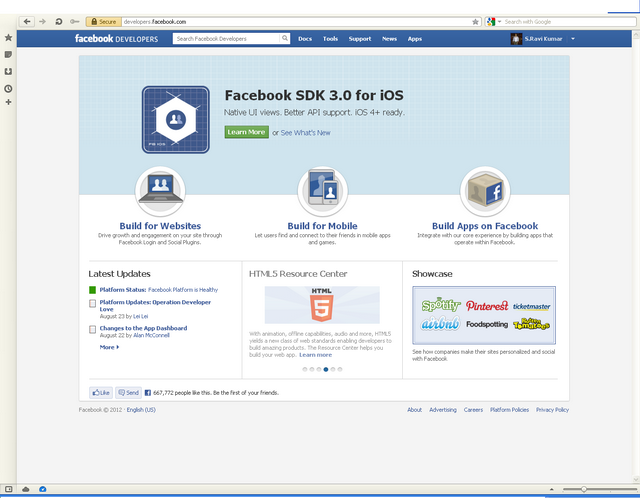
Using Facebook login in ASP.NET application Step-1: Register site in Facebook: Open http://developers.facebook.com and login with your Facebook credentials after logging in you will get a screen like this: Click on "Build for Websites" link, you will reach to https://developers.facebook.com/docs/guides/web/ , just click on 'Apps' menu Items (the last menu Item from right side), you will reach to https://developers.facebook.com/apps. Click on   button, you will get following screen. Enter the name of your website in place of App Name, rest of the fields are optional so fill them if you require to use them and click on 'Continue' button. you will be asked to fill a captcha screen and then you will get the summary screen like below screenshot (Just masked the AppID). Give the URL of you webs...

Convert Unix Time Stamp To System Date Time

Convert Unix Time Stamp To System Date Time Step 1 Copy the function code below and paste in your page.   public string ConvertToUnixTimeStapToDateTime(double timestamp)     {                 // First make a System.DateTime equivalent to the UNIX Epoch.         System.DateTime dateTime = new System.DateTime(1970, 1, 1, 0, 0, 0, 0);         // Add the number of seconds in UNIX timestamp to be converted.         dateTime = dateTime.AddSeconds(timestamp);         // The dateTime now contains the right date/time so to format the string,         // use the standard formatting methods of the DateTime object.         string resDate = dateTime.ToShortDateString() + " " + dateTime.ToShortTimeString();         return resDate;     } Step 2 Call the function and p...

Download Pre-Request patch file for SharePoint 2010 Installation

Download Pre-Request patch file for  SharePoint 2010 Installation Pre-Request patch file download for SharePoint 2010 Software. Click on below link for download pre request file... 1.SQL Native Client 2.Hotfix for Microsoft Windows (KB976462) – NET 3.5 SP1 HotFix or Windows 2008 R2 3.Windows Identity Foundation (KB974405) for Windows 2008 R2 4.Microsoft Sync Framework Runtime v1.0 (x64) 5.Microsoft Chart Controls for Microsoft .NET Framework 3.5 6.Microsoft Filter Pack 2.0 7.Microsoft SQL Server 2008 Analysis Services ADOMD.NET 9.Microsoft Server Speech Recognition Language - TELE(en-US) 10.SQL 2008 R2 Reporting Services SharePoint 2010 Add-in

Convert HtmlToPDF in ASP.net & iTextshrap

Convert Web Page to PDF  in ASP.net & iTextshrap Step 1 Download iTextSharp dll from below link's Download iTextSharp dll iTextsharp_Dll Download Step 2 Create a sample website in .net . Add reference the downloaded dll . Step 3 Create a page  and design you report in this web page and put one button for Export to pdf . Step 4 C# Add namespaces below  . using System.IO; using iTextSharp.text; using iTextSharp.text.html.simpleparser; using iTextSharp.text.pdf; using System.Text; Copy and Paste below code in Export Button click event .  Response.ContentType = "application/pdf";         Response.AddHeader("content-disposition", "attachment;filename=TestPage.pdf");         Response.Cache.SetCacheability(HttpCacheability.NoCache);         StringWriter sw = new StringWriter();         HtmlTextWriter hw = new HtmlTextWriter(sw);     ...

Stock Quote and Chart with yahoo using c#

Stock Quote and Chart with yahoo using c# Step 1 Create a website with visual studio and copy the below code paste in your page code behind . Code    protected void Page_Load(object sender, EventArgs e)         {             if (!IsPostBack)             {                 // The page is being loaded and accessed for the first time.                 // Retrieve user input from the form.                 if (Request.QueryString["s"] == null)                     // Set the default stock symbol to YHOO.                     m_symbol = "STER.NS";                 else                   ...

Search Linked In People In your web application using linked in Javascript API

Image
Search Linked In People In your web application using linked in Javascript API Step 1 Go to this below URL  https://www.linkedin.com/secure/developer?newapp= Step 2 Add your apps for generate API key .See Figure 1 Figure 1 Step 3 Fill up all required information as per your requirement .See Figure 2 Figure 2 Then click on Add Application Button for generate API Key .See Figure 3 Figure 3 Step 4 Copy the Below Code and paste in your application page . <script type="text/javascript" src="http://platform.linkedin.com/in.js">   api_key: YOUR_API_KEY </script> <script type="text/javascript"> function searchClick() {   if (!IN.ENV.auth.oauth_token) {     alert("You must login w/ LinkedIn to use the Search functionality!");     return;   }   IN.API.PeopleSearch()     .fields("id", "firstName", "lastName")     .params({...

JavaScript Detect Device in ASP.net

JavaScript  Detect Device in ASP.net Simple put the JavaScript in your default page and see the result in your different browser . Redirect Mobile Devices <script type="text/javascript"> <!-- if (screen.width <= 699) { document.location = "mobile.html"; } //--> </script> "mobile.html" would be replaced with the location of wherever your mobile version resides. This technique could be adapted to load an alternate stylesheet as well. For iPhones/iPods Specifically <script language=javascript> <!-- if ((navigator.userAgent.match(/iPhone/i)) || (navigator.userAgent.match(/iPod/i))) {    location.replace("http://localhost/iphone.html"); } --> </script> Enjoy script....

How to Display Page Wise Total Amount & Grand Total Amount in Last page SSRS & RDLC Report

Image
How to   Display  Page Wise Total Amount And  Grand Total Amount in Last page SSRS & RDLC Report Step 1 Go to Project Menu >> Add Page Footer After click on the Add Footer Menu footer automatically add in the report. See Figure 1 Figure 1 Step 2 Add new TextBox for display page wise total and edit expression of TextBox . See Figure 2 Figure 2 Add this expression for page total TextBox =Sum(ReportItems!TotalAmount.Value) Step 3 Add new TextBox for display Grand Total in Last Page of RDLC report and edit expression of TextBox . See  Figure 3 Figure 3 =IIF( Globals.PageNumber =Globals.TotalPages,Sum(Fields!TotalAmount.Value, "DataSet1"),  "") Step 4 Run the application and test the reports Thanks Smruti

Create Job Schedule On Web using ASP.net

Create Job Schedule On Web using ASP.net Step 1 Create Global.asax file in your application. Step 2 Copy below code and paste in Global.asax file . Code  <script runat="server">     void Application_Start(object sender, EventArgs e)      {         System.Timers.Timer timScheduledTask = new System.Timers.Timer();         // Timer interval is set in miliseconds,         // In this case, we'll run a task every minute         timScheduledTask.Interval = 60 * 1000;         timScheduledTask.Enabled = true;         // Add handler for Elapsed event         timScheduledTask.Elapsed +=         new System.Timers. ElapsedEventHandler( timScheduledTask_Elapsed);         timScheduledTask.Stop();         timScheduledTas...